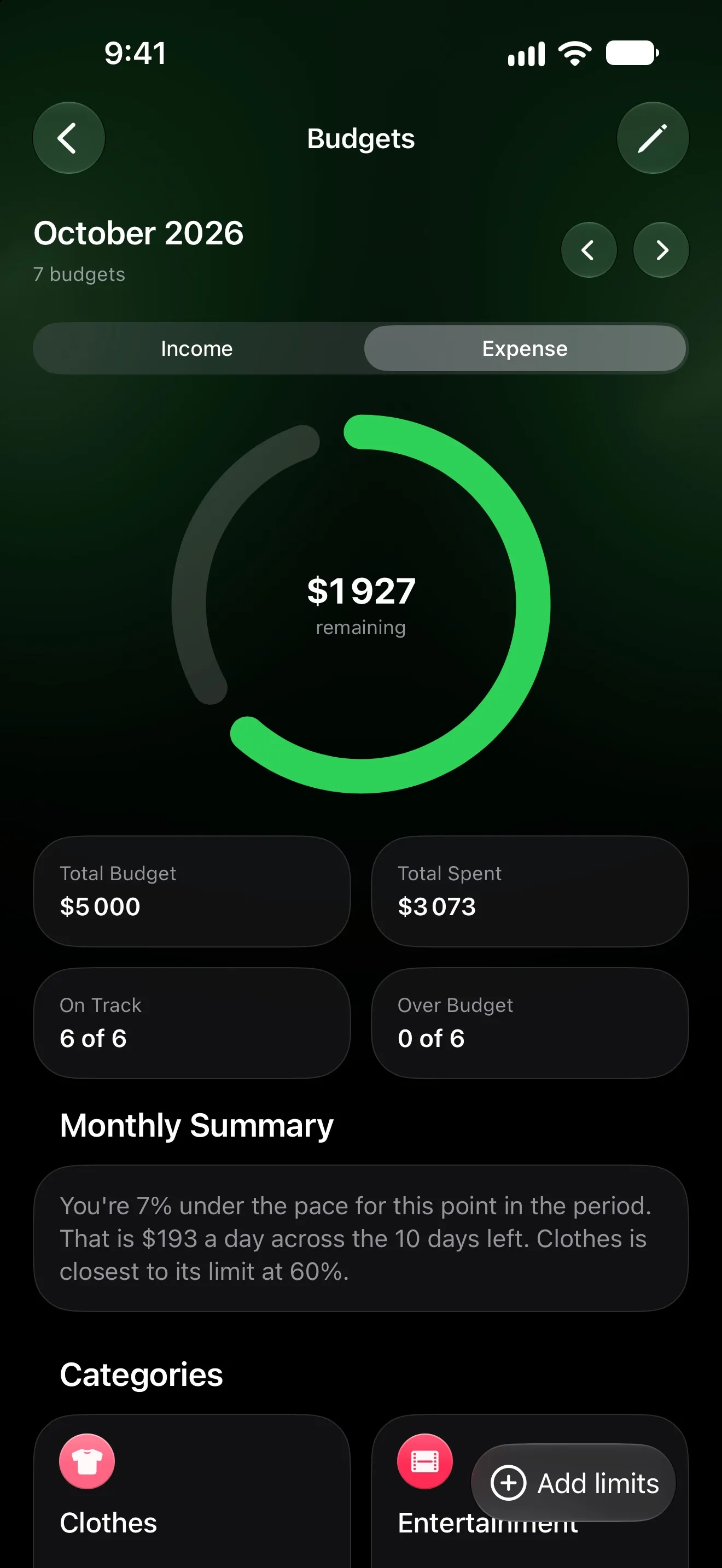
A Christmas Budget on iPhone That Isn't a Printable
A printable Christmas budget breaks at the first purchase you forget to note. Set up the season on iPhone as one project with a cap, categories and a partner.
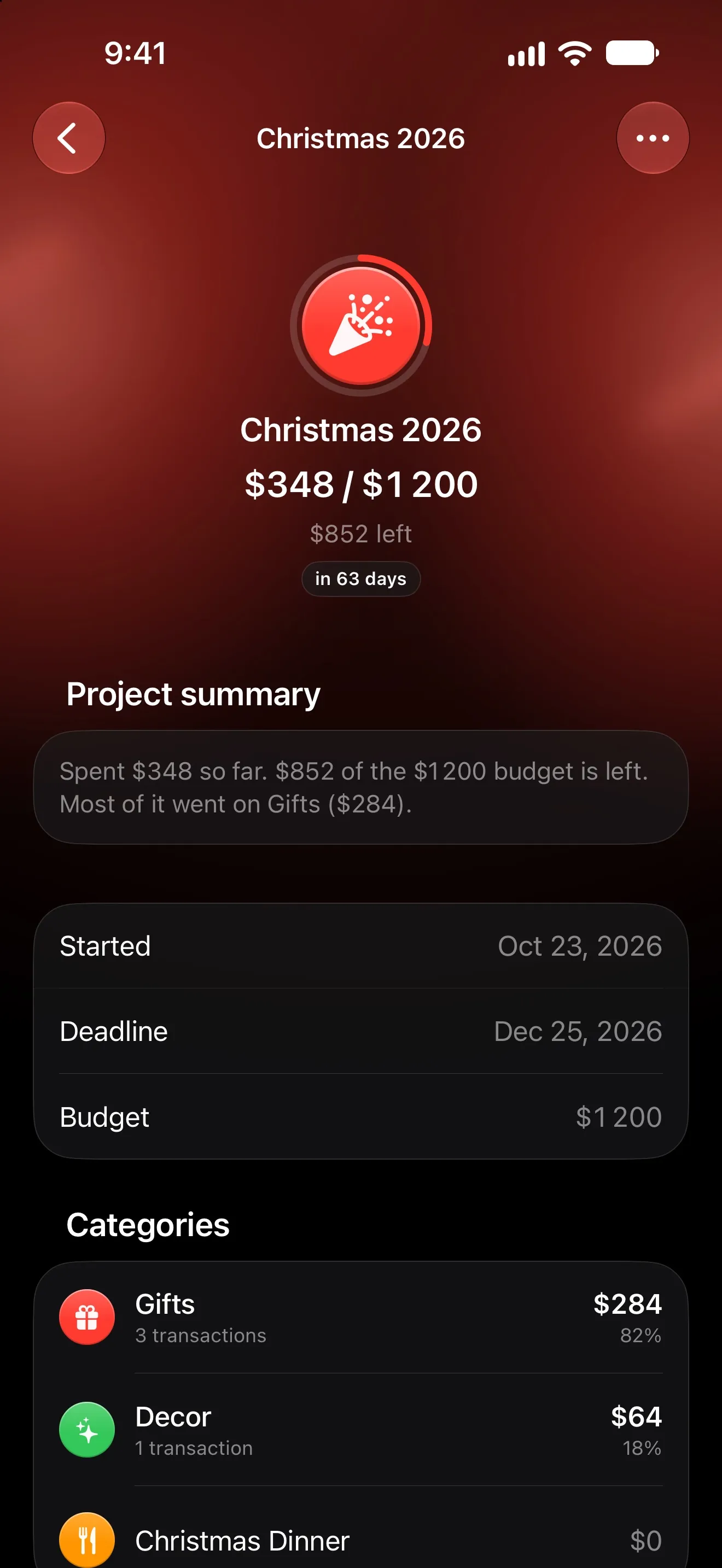
A printable Christmas budget is a good plan and a poor tracker. The list of names and amounts is fine. It breaks when purchases land on two cards, your partner’s phone and an online order nobody wrote down. On iPhone, a budget app can keep that running total for you.
Here’s a setup in Lode that covers the whole season: one project with a cap, categories that match your gift list, purchases logged where they happen, a partner adding to the same total, and a quick check each week in December. If you haven’t settled the amounts yet, start with how much to spend on Christmas gifts per child and per person.
What a Christmas budget needs to do
A normal monthly budget isn’t built for Christmas. In the National Retail Federation’s 2025 survey, 42% of shoppers planned to start before November, and 60% expected to finish in December. The returns come in January. A Christmas budget has to:
- hold one total for the whole season, not one per month;
- show spending per person or per group;
- take a purchase in seconds, in the shop or after an online order;
- let two people add to the same total;
- take refunds off the total in January.
Step 1: Make the season one project
Touch and hold + at the bottom of the Dashboard and choose Project (how projects work). With no projects yet, you can also scroll to Projects on the Dashboard and tap Start a project.
- Name: “Christmas 2026”.
- Budget: your total for the season. It’s for the whole project, not per month, and can be in any currency.
- Starts today. Turn on I know the deadline and set Ends to December 25. Lode reminds you a week before and on the day, with how much is left. The dates only drive the countdown; they don’t decide what counts.
- Keep out of the monthly Budget is on by default. Leave it on, and your December budget keeps tracking rent and groceries while the project tracks presents. Turn it off if Christmas comes out of the same monthly limit.
None of the templates is Christmas-specific, so skip them and add your own categories.
Step 2: Categories that match your list
A project can have up to 12 categories of its own. Two layouts work well:
| By person | By group |
|---|---|
| Mia, Leo, Partner, Mom & Dad, Grandparents | Kids, Family, Friends, Work & school |
| plus Food & hosting, Decor & wrapping | plus Food & hosting, Decor & wrapping, Travel |
By person suits a short list. By group suits a long one, and keeps you under the 12.
Three rules to know:
- The category decides, not the date. Any expense filed under one of the project’s categories counts, whatever its date, from an October early purchase to the last-minute one on December 23.
- Give the project its own versions of everyday categories. The Christmas dinner shop goes in “Food & hosting”, not in Groceries, so only the holiday food counts toward the project.
- They’re regular categories. They appear in every picker as “Christmas 2026 > Kids”. On the free plan, a project’s categories don’t count toward the 8 categories of your own.
Step 3: Log purchases where they happen
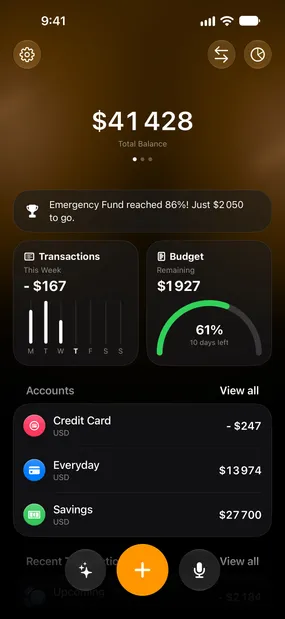
- In the shop: tap +, or open the project and choose ••• → Add Transaction. The editor opens with the project’s first category selected, and its categories come first in the list.
- By voice: tap the microphone and say several things at once, like “Lego set 60, scarf for Mom 35”. You review the list before anything is saved. The free plan includes 3 voice sessions a month; Premium has no limit.
- From a receipt or an order screenshot (Premium): touch and hold Lode AI and choose Scan Receipt. Lode reads the total, who was paid, the date and the currency, and it reads screenshots of an online checkout too. Check the category on the card before you confirm.
- Automatically: the Apple Pay automation logs each tap-to-pay purchase and takes your active projects’ categories into account when it picks one; the confirmation names the project. On iOS 27, bank notifications can log card and online payments as well. Both are free.
The limits are worth knowing before December. Lode has no bank sync. The Apple Pay automation only sees purchases made by tapping in Wallet, and logging from bank notifications needs iOS 27 and your bank’s push notifications. Everything else you add by hand, by voice or from a receipt.
One side effect: when you move a payment to another category, Lode remembers the merchant and files its next payment there. Move an automatically logged Amazon payment into “Christmas 2026 > Kids”, and the next one from Amazon lands there too. After the season, open Settings → Automation → Remembered Merchants and forget the stores you only used for gifts.
Step 4: Add your partner
If you both buy presents, share an account. Open it, tap … and choose Share Account. Sharing an account you own needs Premium; joining one is free. Your partner needs Lode and an iCloud account, so this works between Apple devices only. More in Shared accounts.
How it fits the project:
- The project’s categories are added to the shared accounts you own, so your partner can pick them. Create the project on the phone of whoever owns the shared account.
- Count others’ spending appears once you share an account and is on by default. Your partner’s purchases in the project’s categories then count toward your project.
- The project page and its budget stay yours. Your partner sees the shared transactions, not the project.
- For the gift you buy each other, turn on Hide from Others in the transaction editor. The other person won’t see it, though it still counts toward the account’s balance.
Step 5: Check it once a week in December
Pick a day, open the project, and look at four things:
- Spent against the budget, and what’s left or how far over you are.
- Categories, with what each person or group has cost. Keep your per-person plan in the project’s Note, because the budget itself is one number.
- Recent Transactions. Anything filed wrong comes out of the project by changing its category.
- By month, which appears once the project spans more than one month and shows how much of the total went in November.
If one person’s category runs over, take it from another. The total is what you promised yourself. With Premium, you can also ask Lode AI how the project is going.
In January: returns and the final number
- Returns: record the refund as income in the project’s category, and it’s subtracted from what the project spent. Add Transaction on the project’s page works after you’ve finished the project too.
- Finish project from the project’s ••• menu. The Project finished sheet shows what Christmas cost in the end, and the project leaves the Dashboard.
- Next year: the free plan includes one project, finished or not. Deleting it frees the slot and never deletes its transactions. Premium allows unlimited projects, so this year and next can sit side by side.
Free or Premium
| Part of the setup | Free | Premium |
|---|---|---|
| One Christmas project with a budget and up to 12 categories | Yes | Yes |
| Logging by hand, Apple Pay and bank-notification automations | Yes | Yes |
| Voice entry | 3 sessions a month | Unlimited |
| Receipt scanning and Lode AI chat | No | Yes |
| Sharing an account you own | No (joining is free) | Yes |
| More than one project | No | Yes |
A printable still has one job left: the list of names you write in November. Everything after that is a running total, and a phone you already carry into every shop keeps it better than paper on the fridge.