

Statistics
Tracking & Planning
Statistics
See income, expenses, bills and your net balance for any period, then go deeper with categories, daily cost, trends, filters and PDF reports with Premium.
Statistics shows where your money came from and where it went over a period: a week, a month, a year or a range you choose.
Opening Statistics
On iPhone, tap the chart button in the top-right corner of the Dashboard. On iPad, choose Statistics in the sidebar. You can also open it from an account’s page to see just that account.
Choosing a period
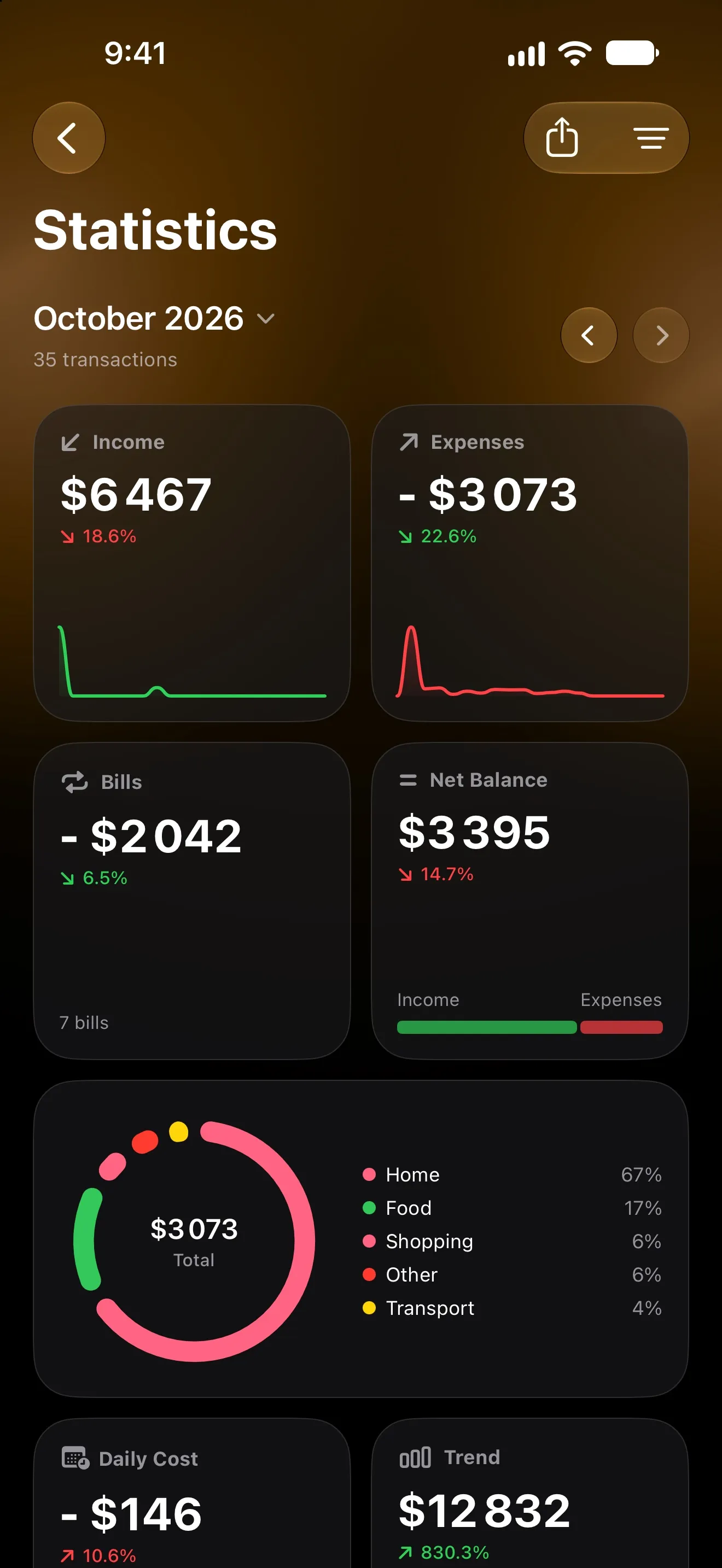
The period’s name sits at the top, with the number of transactions in it. Tap it to open Select Period:
This Week,This Month,This YearPrevious Week,Previous MonthCustom Range: pickDate range fromandDate range to, then tapApply
Use the arrows to step to the previous or next period, and Today to jump back to the current one.
The tiles
Most tiles show the change from the previous period as a percentage. Tap a tile for a detailed sheet.
IncomeandExpenses: totals for the period, with a small chart across it.Bills: what your bills charged in the period, and how many bills that was. The sheet also shows what is still due and any free trials about to start charging.Net Balance: income minus expenses. The sheet includes your savings rate.Categories: a chart of spending by category. In the sheet you can switch between expenses and income, then tap a folder to see its categories and a category to see its transactions and its last 12 months.Daily Cost: your average spending per day, and where the period is heading at that pace.Trend: income and spending month by month over the last 12 months. Tap a month in the sheet to jump to it.DebtsandGoals: appear when you have open debts or active goals.TripsandProjects: appear once you have a trip or a project, and show how much of the period’s spending went into them.
To reorder or hide tiles, scroll down and tap Customize Widgets. Drag tiles to reorder them, use the switches to hide or show them, or tap Reset to go back to the default layout.
What counts as income and spending
Statistics counts your income and expenses. It leaves out entries that only move money around:
- transfers between your own accounts;
- starting balances and balance adjustments (see Accounts & balances);
- money put into or taken out of a goal;
- debt amounts and debt payments.
Filters
Tap the filter button to narrow every tile to particular accounts, categories or tags.
Turn on Without trips to leave out what you spent on trips, so a month with a holiday can be compared with an ordinary one. Income still counts. Without projects sets aside everything in your projects’ categories in the same way. Each switch appears once you have a trip or a project. Clear All Filters removes them all. Active filters stay on the screen as chips until you clear them.
Currencies
Statistics is shown in your main currency, the one set in Settings → Currency. Amounts in other currencies are converted into it. When you filter to accounts that all use the same currency, Statistics switches to that currency. See Multi-currency & exchange rates.
Start of Month
If you’re paid on, say, the 25th, you can make your financial month run from payday to payday. Go to Settings → Start of Month and pick a day, or Last day.
Monthly periods in Statistics then follow your month. The title shows the dates (for example “25 Jun – 24 Jul”), and Previous Month, the arrows and Trend all step by your month. Weeks and years still follow the calendar. The same setting applies to the Dashboard and Budgets.
Export a report
Tap Export Report (the share button at the top) to create a PDF report of the period.
Free and Premium
Free:
- the
Income,Expenses,BillsandNet Balancetiles, with their detail sheets; - the
This MonthandPrevious Monthperiods.
- the
Categories,Daily Cost,Trend,Debts,Goals,TripsandProjectstiles. Without Premium they’re shown blurred, with sample data and aPremiumlabel. Tap one to see the plans. This Week,This Year,Previous WeekandCustom Range;- filters, including Statistics for a single account when you have more than one;
- PDF export of your own data. Without Premium you can preview a
Sample Report.
Questions? Reach out at lodeapp@proton.me.